
How to Make Spotify Sound Louder
Maximize Spotify volume using built-in settings, equalizer adjustments, and device-level audio configuration.
1. Adjust volume normalization
Spotify normalizes track volume so songs play at a consistent level. This prevents loud tracks from blasting unexpectedly, but it also limits maximum volume. To change this:
- Mobile: Settings → Playback → Volume level → set to Loud
- Desktop: Settings → Playback → Volume level → set to Loud
The "Loud" setting normalizes to -11 LUFS instead of -14 LUFS, which makes most tracks noticeably louder. You can also disable normalization entirely by turning off "Normalize volume," though volume will vary between tracks.
2. Use the built-in equalizer
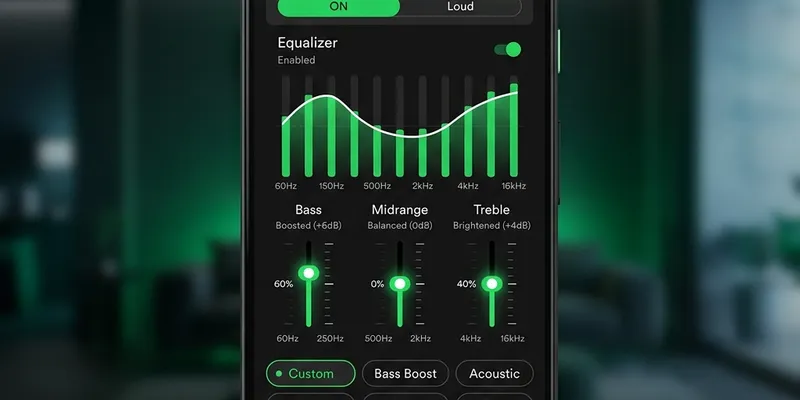
Spotify includes an equalizer on mobile devices. To access it:
- Open Spotify → Settings → Playback → Equalizer
- Try the Bass Booster or Loudness preset for an immediate volume boost
- For custom tuning, boost the 60 Hz and 150 Hz bands for more bass, and the 6 kHz and 14 kHz bands for more presence and clarity
On Android, Spotify may use the system equalizer (usually found in Settings → Sound → Audio effects). On iPhone, the Spotify EQ is built into the app.
3. Maximize audio quality
Higher-quality audio streams sound fuller at the same volume level:
- Free tier: Switch to High quality (160 kbps) instead of Normal (96 kbps)
- Premium: Switch to Very High (320 kbps) or enable lossless if available
- Go to Settings → Audio Quality → Wi-Fi streaming and Cellular streaming
Download quality can also be set separately for offline playback.
4. Device-level volume tips
- Android: Disable absolute volume in Developer Options to control Bluetooth volume independently. Check Settings → Sound → Media volume limiter and turn it off.
- iPhone: Go to Settings → Music → Volume Limit and make sure it is set to maximum. Also check Settings → Sounds & Haptics → Headphone Safety.
- Desktop: Check your system mixer — Spotify may have a lower volume than other apps. Right-click the speaker icon in the taskbar and open Volume Mixer.
- Bluetooth: Ensure both device volume and speaker volume are at maximum. Some Bluetooth speakers have independent volume controls.
5. Check your speaker hardware
If Spotify sounds quiet on all settings, the issue may be your speaker. Dust, water, or debris blocking the grille can reduce perceived volume significantly. Use our speaker cleaner tool to check for blockages before assuming it is a software problem.
Foire Aux Questions
Does Spotify have a built-in equalizer?
Yes. On mobile, go to Settings → Playback → Equalizer. On desktop, go to Settings → Playback → Equalizer. You can choose from presets like Bass Booster, Treble Booster, and Loudness, or customize the bands manually.
Why does Spotify sound quieter than other apps?
Spotify's Loud normalization target (-14 LUFS) is lower than some other apps. Set normalization to 'Loud' to match, or disable it entirely for maximum volume at the cost of volume consistency between tracks.
Does audio quality affect loudness?
Higher quality streaming (320 kbps or lossless) preserves more detail and dynamic range. While it doesn't increase maximum volume, the audio will sound fuller and clearer at the same volume level.