
How to Get Water Out of a Charging Port
Charging ports need a slower approach than speakers. Sound can help speaker grilles, but charging ports should be dried with gravity, airflow, and patience.
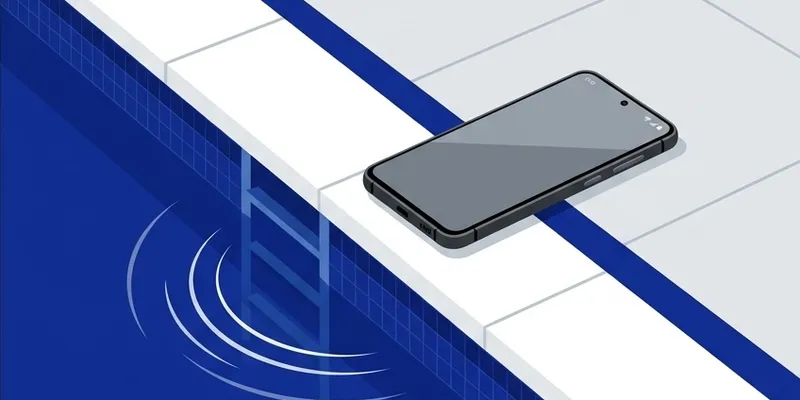
What to Do First
Unplug the cable immediately and keep the port facing downward.
Shake the phone gently once or twice, then leave it upright in a dry place.
Wait before charging again. Many phones keep a moisture warning active until the port is genuinely dry.
What to Avoid
Do not insert tissue, cotton swabs, metal tools, or compressed air into the port.
Do not charge wirelessly if the phone feels warm or recently submerged.
If the warning remains after a full day, the port may need inspection.
How This Differs From Speaker Water
Speaker water can sometimes be moved by vibration because the speaker membrane is designed to move air.
A charging port is different. It should be dried with time and gravity because the contacts can be damaged by pressure, debris, or early charging.
How Long Does a Charging Port Take to Dry
Under normal indoor conditions—around 20 to 25 degrees Celsius with moderate humidity—a charging port typically dries enough to dismiss the moisture warning within one to four hours. The variation depends on how much water entered, whether it was fresh or salty, and how well ventilated the area is. A phone splashed briefly at a sink will dry far faster than one dunked in a pool for ten seconds.
You can speed the process safely by placing the phone in front of a gentle fan or in a room with a dehumidifier. The goal is to move dry air across the port opening without introducing heat. A ceiling fan on low in a dry room is ideal. Avoid pointing a compressed-air can directly into the port because the propellant is cold and can condense additional moisture inside.
On iPhones running iOS 14 and later, the moisture detection alert will not allow charging until the sensors inside the port read dry. You can override this by reconnecting the cable and tapping Emergency Override, but Apple strongly advises against it unless you genuinely need to make an emergency call. Overriding the warning while the port is wet risks corrosion on the Lightning or USB-C pins and can permanently damage the charging IC on the logic board.
Samsung Galaxy phones with One UI display a similar water drop icon and block both wired charging and USB data transfer. The alert typically clears on its own once the port dries. If the warning persists beyond 24 hours, try restarting the phone—sometimes the sensor flag gets stuck in software even after the hardware is dry.
Wireless Charging While Port Is Wet
Wireless charging is generally safe to use while the charging port is still damp, as long as the phone is not hot and was not fully submerged. Qi wireless charging uses inductive coils on the back of the phone, which are completely separate from the port contacts. The charging coil is sealed behind glass or plastic and does not come in contact with port moisture.
Place the phone on the wireless charger with the screen facing up and the port area open to air so it can continue drying. Avoid laying the phone face-down on a soft surface, which traps humidity against the port. A flat Qi pad works better than an upright stand in this situation because the phone lies stable without pressing the port opening against anything.
There are a few exceptions. If the phone was submerged in salt water, chlorinated pool water, or any liquid other than plain fresh water, wireless charging can still generate enough heat to accelerate internal corrosion. In that case, power the phone off entirely and let it dry for at least 12 hours before charging by any method. Salt residue is conductive and can create short-circuit paths when the phone warms up during charging.
MagSafe chargers on iPhone 12 and later models align magnetically and charge at up to 15 watts. This higher power creates more heat than a standard 7.5-watt Qi pad, so monitor the phone temperature during the first few minutes. If the back glass feels noticeably warm to the touch, remove it from the charger and let it cool before trying again.
Signs the Port Needs Professional Cleaning
If the moisture warning keeps returning even after the port is visibly dry and the phone has rested for more than 24 hours, debris may be trapping micro-droplets between the contacts. Pocket lint, fine sand, and dried mineral deposits from hard water can all hold moisture like a sponge inside the narrow port cavity.
A common sign of port contamination is a charging cable that does not click firmly into place. On Lightning ports, the cable should seat with a distinct snap. On USB-C ports, the connector should slide in smoothly and hold without wobbling. If the cable feels loose or only charges at certain angles, compacted lint at the back of the port is the most likely cause.
Apple and Samsung retail stores will clean the port for free during a Genius Bar or service appointment. Technicians use a specialized anti-static plastic spudger and magnification to remove compacted debris without scratching the contacts. Attempting this at home with a metal pin or needle risks shorting the port pins and scratching the gold plating that protects them from corrosion.
If the port has visible green or white residue around the pins, that is active corrosion from liquid exposure. Cleaning alone will not fix corroded contacts—the port assembly may need replacement. On most modern iPhones and Samsung Galaxy S-series phones, the charging port is a modular component that can be swapped without replacing the entire logic board, keeping the repair cost between 40 and 90 US dollars at a reputable shop.