
iPhone Speaker Crackling: Diagnosis, Causes, and Fixes
iPhone speaker crackling ranges from a faint static hiss to an aggressive distortion that makes calls unusable. The fix depends on whether the cause is software, debris, moisture, or a failing speaker driver.
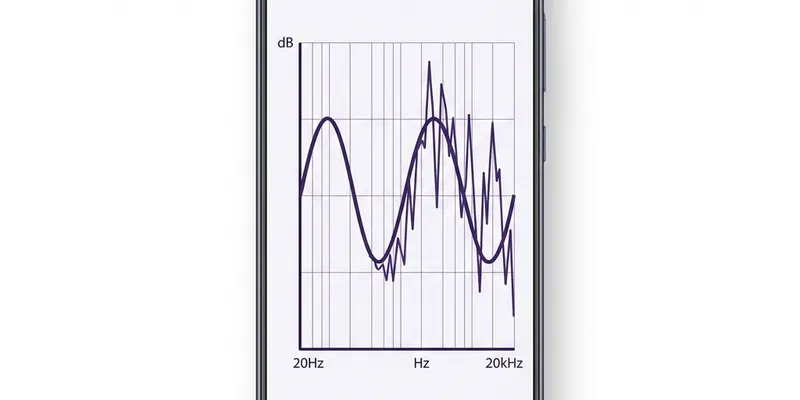
Identify Which Speaker Is Crackling
iPhones from the iPhone 7 onward use two speakers for stereo audio: the bottom-firing main speaker next to the Lightning or USB-C port, and the earpiece speaker at the top of the display. During phone calls held to the ear, only the earpiece is active. During media playback and speakerphone calls, both speakers work together. Identifying which speaker crackles narrows the diagnosis immediately.
To test the bottom speaker, cover the earpiece at the top of the phone with your finger and play music at 50 percent volume. Listen closely to the bottom speaker for any crackling, buzzing, or rattling. Then cover the bottom speaker and listen to the earpiece. If only one speaker crackles, the problem is isolated to that specific driver.
Another method is to open Settings, then Accessibility, then Audio and Visual, and slide the stereo balance all the way to the left, then all the way to the right. This sends all audio to one speaker at a time. Crackling that appears only on one side confirms a single-speaker issue. Crackling on both sides suggests a software or system-level cause rather than a single failed driver.
If crackling only happens during phone calls but never during music, the issue may be network-related rather than speaker-related. Poor cellular signal causes audio compression artifacts that sound like crackling. Check the signal strength indicator and try the same call over Wi-Fi Calling to see if the crackling disappears.
Software and Settings Fixes
Force-restart the iPhone as a first step. On iPhone 8 and later, quickly press and release Volume Up, then Volume Down, then press and hold the Side button until the Apple logo appears. This clears the audio processing pipeline more thoroughly than a normal restart and resolves transient software glitches that can cause crackling in the audio output stage.
Go to Settings, then Sounds and Haptics, and drag the Ringer and Alerts slider back and forth. If you hear crackling during this test, the speaker hardware is likely involved. If the slider sounds clean but specific apps crackle, the issue is in the app's audio output—try deleting and reinstalling the app, or clearing its cache.
Disable all audio processing: go to Settings, then Music, then EQ, and select Off. Then go to Settings, then Accessibility, then Audio and Visual, and turn off Mono Audio, confirm the balance slider is centered, and turn off any Headphone Accommodations that might be active. These features apply digital signal processing that can overdrive the speaker's frequency response curve and cause distortion at certain frequencies.
Check for iOS updates under Settings, then General, then Software Update. Several iOS releases have included audio-specific bug fixes. iOS 16.3 fixed a bug where the earpiece volume would spike briefly when switching from speakerphone to earpiece during a call, causing a loud pop. iOS 17.1 addressed an issue where Spatial Audio processing would occasionally cause crackling during FaceTime calls. Keeping iOS updated ensures you have the latest audio stack fixes.
Cleaning to Fix Debris-Related Crackling
Debris-related crackling has a distinct character: it sounds like a faint rattle or buzz that follows the beat of the audio rather than occurring randomly. This happens when a particle sitting on or near the speaker diaphragm vibrates sympathetically with certain frequencies, typically in the 200 to 500 Hz range where bass guitar, kick drums, and male vocals produce the most diaphragm movement.
Hold the iPhone with the affected speaker facing downward and brush the grille gently with a soft-bristle brush. Work the bristles across the grille in one direction, sweeping debris out rather than pushing it back and forth. After brushing, play the same audio that triggered the crackling and check if it has improved. If it has, the cause was debris on the mesh.
For crackling that persists after brushing, use a speaker cleaner tone at 50 percent volume for 15 seconds. The vibration can dislodge particles that are stuck to the diaphragm rather than sitting on the mesh. Increase to 70 percent volume for another 10 seconds if the first pass did not fully resolve the crackling. Do not exceed 80 percent volume to avoid stressing the driver.
If the crackling started after the iPhone was in a sandy environment—a beach, desert hike, or playground—fine sand grains may have entered past the mesh and are sitting directly on the diaphragm. This is more serious than lint or dust because sand is abrasive and hard. Each vibration cycle grinds the particle against the diaphragm surface. In this case, professional cleaning with the phone opened is the safest option to avoid permanent speaker damage.
Moisture-Related Crackling and Water Eject
Water trapped in the speaker grille produces a wet, sputtering crackle that is distinctly different from debris rattle. It often sounds bubbly at low volumes and becomes a harsh distortion at higher volumes as the water interferes with the diaphragm's free movement. This type of crackling typically starts immediately after water exposure—a rain shower, a splash in the sink, or a sweaty workout with the phone in a pocket.
Run the water eject mode with the speaker facing downward. Start at 50 percent volume and increase to 70 percent over the first 15 seconds. The low-frequency tone, typically centered around 165 Hz, vibrates the diaphragm at its maximum excursion, physically pushing water droplets off the mesh and out of the grille. You may see tiny droplets appear on the grille surface during the process.
After the water eject session, tap the phone gently against your open palm two or three times with the speaker facing down. Then set the phone in a dry, ventilated area with the speaker facing down for at least 30 minutes. Test the speaker with spoken audio afterward. If the crackling has reduced but not disappeared, wait another hour and test again—residual moisture continues to evaporate.
If crackling persists after 24 hours of drying, water may have reached the voice coil or the flex cable connection behind the speaker. At this point, continued water eject sessions will not help because the moisture is not on the grille surface. The phone should be examined by a technician who can open the device and inspect the speaker assembly for corrosion or residual moisture under magnification.
When the Speaker Needs Replacement
A speaker that crackles at every volume level, including very low volumes of 10 to 15 percent, has physical damage. Software and cleaning fixes rely on the speaker driver being mechanically sound. If the diaphragm is creased, the voice coil is partially detached, or the surround has torn, no amount of cleaning or software adjustment will restore clean output.
The most common cause of permanent speaker damage in iPhones is dropping the phone onto a hard surface while audio is playing. The sudden impact can cause the voice coil to jump out of its gap, creasing the diaphragm as it snaps back. This damage is invisible from outside the phone because the speaker mesh looks normal, but the crackle is present at all volumes and all frequencies.
Apple charges between 69 and 109 US dollars for bottom speaker replacement depending on the iPhone model, performed at Apple Stores and Apple Authorized Service Providers. The repair typically takes one to two hours. Third-party repair shops charge 40 to 70 US dollars for the same repair, but verify that they use original or high-quality aftermarket speaker modules—cheap replacements can have lower maximum output and different frequency response than the original part.
Before paying for a repair, confirm the diagnosis by connecting Bluetooth headphones or wired EarPods and playing the same content that crackles on the speaker. If the audio is clean through headphones, the issue is definitely the speaker hardware. If the audio crackles through headphones too, the problem is in the iPhone's audio codec or logic board, which is a much more expensive repair.
Preventing Future Crackling
A protective case with open speaker channels rather than sealed cutouts reduces debris accumulation in the grille. Cases that cover the speaker opening with a thin membrane muffle audio and trap lint between the membrane and the mesh, creating a permanent debris layer. Look for cases with wide, open cutouts at the bottom that leave the speaker grille fully exposed.
Clean the speaker grille every two to three weeks using a soft-bristle brush as described above. This prevents lint and dust from compacting into the mesh, which is much harder to remove than fresh, loose particles. A 30-second brushing during your regular phone-charging routine is enough to prevent most debris-related crackling.
Avoid exposing the iPhone to sand, fine dirt, and powdery substances. If you take the phone to the beach, keep it in a sealed waterproof pouch. Sand particles are small enough to pass through the speaker mesh and hard enough to damage the diaphragm. Beach sand is also often mixed with salt, which corrodes metal components when combined with moisture.
Keep the iPhone out of humid environments when possible. Bathroom steam during a hot shower, while not liquid water, condenses on cool surfaces including the inside of the speaker grille. Over time, repeated condensation cycles leave mineral deposits on the diaphragm that change its mass and stiffness, eventually producing a faint buzz or crackle at specific frequencies.