
Why Is My Phone Speaker Crackling?
Crackling can come from moisture, dust, aggressive EQ settings, loose parts, or a speaker driver that is starting to fail. The fastest fix depends on when the crackling started.
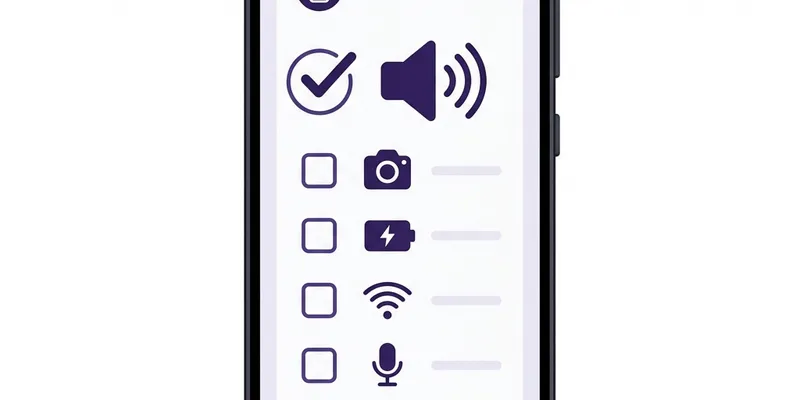
Quick Checks
Lower the volume to 70 percent and test the same audio again.
Turn off equalizer, bass boost, spatial audio, and accessibility volume enhancements.
Run a left-right sound test to see whether only one speaker is affected.
Likely Causes
Crackling after water exposure usually means trapped moisture is vibrating inside the grille.
Crackling after months of pocket use often points to dust or debris blocking the speaker mesh.
Crackling on every app, ringtone, and call can indicate hardware damage.
Fast Diagnosis Path
If crackling improves after Water mode, moisture was likely the cause.
If it improves after cleaning the grille, debris was likely blocking the mesh.
If it stays the same at low volume across every app, treat it as a hardware or repair issue.
Software Fixes to Try First
Start by restarting the phone. Both iOS and Android maintain audio processing pipelines that can enter a corrupted state after a Bluetooth device disconnects unexpectedly or an app crashes while playing audio. A simple restart clears the audio buffer and resets the Core Audio or AudioFlinger service to its default configuration.
On iPhone, navigate to Settings, then Accessibility, then Audio and Visual, and make sure the balance slider is centered. Check that Mono Audio is turned off unless you specifically need it. Then go to Settings, then Music, then EQ, and set it to Off. Third-party equalizer profiles sometimes push certain frequencies past the speaker's rated output, causing the diaphragm to bottom out and produce a crackling sound.
On Samsung Galaxy phones running One UI, open Settings, then Sounds and Vibration, then Sound Quality and Effects. Turn off Dolby Atmos and Adapt Sound temporarily. Both features apply aggressive digital signal processing that can overdrive the small bottom-firing speaker, especially on the Galaxy A-series where the speaker hardware is more compact than on the S-series.
If the crackling began immediately after a software update, check community forums and the manufacturer's support page for known audio bugs. Both iOS 17.2 and One UI 6.0 had documented speaker-related bugs that were patched in subsequent updates. Installing the latest available update—or rolling back if possible—can resolve software-induced crackling without any hardware intervention.
Hardware Signs That Mean Repair Time
A speaker that crackles at any volume—including very low levels like 10 to 20 percent—almost certainly has physical damage. Software-related crackling typically disappears at low volumes because the signal amplitude stays within the speaker's undamaged range. Persistent low-volume crackling suggests a torn surround, detached voice coil, or debris physically touching the diaphragm.
Try recording a voice memo and playing it back. If the recording itself sounds clean but playback through the speaker crackles, the microphone and audio codec are functioning normally and the fault is isolated to the speaker driver. This simple test rules out a software codec or audio processing issue and points directly to the speaker hardware.
On iPhones with two speakers—the bottom-firing main speaker and the earpiece speaker at the top—crackling from only one side narrows the problem further. Cover the bottom speaker and play audio at moderate volume. If the earpiece sounds clean while the bottom speaker crackles, only the bottom module needs replacement. This is a common outcome for phones that took a drop onto a hard surface, because the bottom speaker sits near the impact zone.
Replacement speakers for iPhone 11 through iPhone 15 are widely available, and the repair is straightforward for a certified technician. Samsung Galaxy speaker replacements are similarly modular on most S-series and A-series models. Expect the repair to take 30 to 60 minutes at a walk-in service center. The speaker module itself typically costs 10 to 25 US dollars, with labor adding another 30 to 60 dollars depending on the shop.
Crackling on Calls vs Media Playback
Crackling only during phone calls but not during music or video playback points to the earpiece speaker rather than the bottom-firing speaker. During a standard voice call, audio routes through the earpiece at the top of the phone. The earpiece driver is smaller and more vulnerable to moisture and dust because it sits behind a narrower mesh grille directly adjacent to the front-facing camera and Face ID sensors.
If the crackling happens on both calls and media, switch a call to speaker mode and listen. If speaker mode sounds clean while the earpiece crackles, the earpiece mesh may be clogged. On iPhone, you can gently brush the earpiece grille at the top of the screen with a soft anti-static brush. On Samsung Galaxy phones, the earpiece is often integrated into the display assembly and sits behind a thin slit at the top edge.
VoLTE and Wi-Fi calling use different audio codecs than standard cellular calls. Try toggling Wi-Fi Calling off in Settings, then Cellular, then Wi-Fi Calling on iPhone, or Settings, then Connections, then Wi-Fi Calling on Samsung. If the crackling disappears, the issue is codec negotiation between your phone and the carrier, not the speaker hardware. Contact your carrier to reset your VoLTE provisioning.
Bluetooth call audio that crackles while local speaker audio sounds fine indicates a Bluetooth codec or bandwidth issue, not a speaker problem. Forget the Bluetooth device in settings, restart both devices, and re-pair. If the crackling persists only over Bluetooth, the issue lies in the wireless connection or the receiving device, not in your phone speaker.